7.01 USB (TactileView)

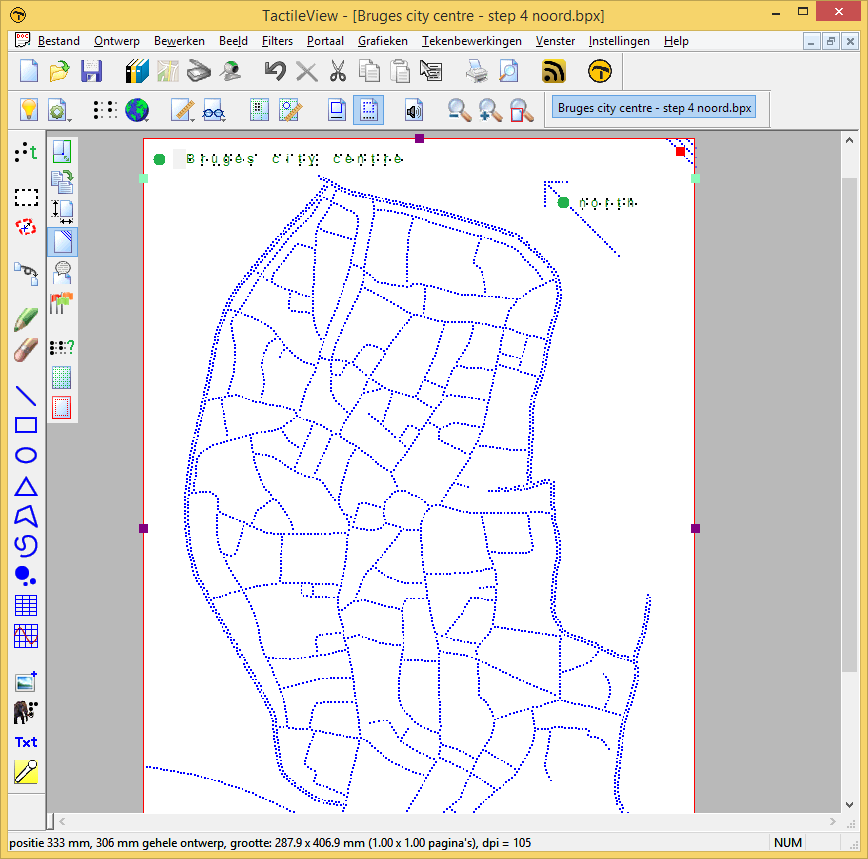
You can connect your MDA directly to a PC using the USB-B port at the back of the MDA. This allows you to sketch images created in the TactileView software directly onto the MDA (File menu → Sketch with MDA → Sketch button). Note that this option completely bypasses the MDA interface and must not be used in simultaneously with the MDA interface. When the MDA interface is used in parallel with TactileView, and a …

Read more

7.02 Hotspot

The MDA interface is equipped with WiFi hotspot functionality. The default WiFi functionality for the MDA is to operate as a WiFi hotspot. By default, the WiFi hotspot is broadcasting under the default WiFiI network name (network SSID) “mda-hotspot”. This name may have been changed. If so, look for the new WiFi hotspot name when trying to connect to the hotspot. With a PC, Mac, tablet or smartphone, you can search for this WiFi network …

Read more

7.03 LAN/WAN

The MDA has built-in capabilities for LAN connections through wired Ethernet or WiFi. A wired Ethernet connections can be created by plugging an Ethernet cable, connected to your network, into the MDA’s Ethernet port. When the MDA is switched on, it will automatically configure itself for your network, assuming that your router acts as a DHCP server (which is the default). WiFi connections can be established trough the MDA interface. Navigate to Setup, log in, and …

Read more

7.04 Mounting MDA to PC/Mac/Tablet

The MDA has the possibility to mount two different MDA directories directly to a PC, Mac or tablet. The first directory is the MDA-upload directory. Any SVG image that you copy into this directory will appear on the upload page in the MDA interface. The second directory is the MDA-autosketch directory. Any SVG image or GPX formatted file derived from an SVG image will be sketched automatically on the MDA. In order to mount a …

Read more

8.01 Automatic updates

The MDA interface and its supporting tools are updated whenever new developments or bug fixes become available. In addition, when new example images are released, these images are automatically downloaded to the Examples directory of the MDA. Updates are carried out automatically when the MDA is switched on and connected to the internet. The update process can take up to two or three minutes, depending on the speed of your internet connection. During this time, …

Read more

9.01 SVG Files

The MDA can sketch images based on the SVG format. SVG stands for Scalable Vector Graphics and includes an extensive set of commands for creating images using basic shapes such as lines, rectangles and circles, which can be assigned properties such as solid or dashed lines, colours, filled shapes, and so on. For images to be sketched on the MDA, only a limited subset of these SVG properties can be used. Although the MDA software …

Read more

9.02 Interface

SVG images can be sketched from the MDA interface, from the following four pages: Uploads, images can be uploaded to this page by yourself. USB-stick, images from an inserted USB drive. MyImages, images requested by you, made by designers from the MyImages community. Examples, images from the various example categories present on the MDA. In every case, the way to start sketching the image is with a simple mouse click (an alternative method of selecting …

Read more

9.04 Multiple Sketch Jobs

Sometimes it might be necessary to sketch the same design multiple times. This can easily be done through the interface. The interface remembers the last design it sketched and displays this design at the top of every sketch page, where it can simply be selected to repeat that sketch. If you’re connecting to the MDA through the interface and try to start a new sketch while the MDA is still sketching, you’ll notice that the …

Read more

9.05 Auto Sketching

The MDA has the possibility to automatically start sketching an image. Any SVG image file (or an MDA G-code file) that is copied or uploaded into the MDA-autosketch directory will be sketched automatically. See chapter 7.04 on how to mount this directory to your PC, Mac, tablet or smartphone. The TactileView software also has the possibility to generate MDA G-code files, and with a single command you can send this file to the MDA-autosketch directory. …

Read more

Item added to cart.
0 items - $0.00