5.01 Accessing the Interface

The interface can be accessed by using an internet browser on any PC, Mac, tablet or smartphone. The easiest way to connect to the interface is via a wired Ethernet connection from your router to the MDA. When the MDA is switched on, it will automatically configure itself for your network, and you can then access the MDA’s interface by entering the following link into your browser: http://mda/. The MDA also acts as a WiFi …

Read more

5.02 Internet Functionality

When the MDA is connected to the internet through either a wired or a WiFi connection to your own network, there is additional functionality available for the MDA: You can fully register your MDA, so that you will be kept informed about the latest updates and developments related to the MDA. The MDA will automatically download and install the latest software updates when it is switched on. The MDA will automatically download and install the …

Read more

6.01 Home

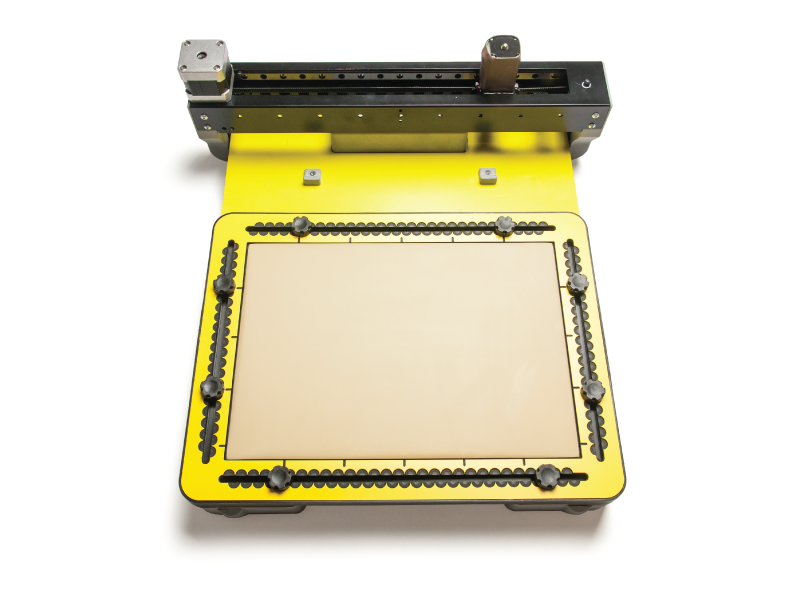
The home page of the MDA interface gives a brief explanation and links to the main pages of the MDA, followed by an instruction on how to position the TactiPad on the MDA. At the top of the page is a link to the MDA manual on the help page. Thereafter, a brief explanation is given of the various sketch options, with links to the Example gallery, the Uploads page, the USB drive pages, and …

Read more

6.02 Uploads

The “Uploads” page shows images uploaded to the MDA and gives the possibility to upload new images or delete previously uploaded images. At the top of the page, you’ll see the last image, that was sketched by the MDA. If you click on this image the MDA will start sketching the image again. Below this, you’ll find the images that have been uploaded to the MDA. You can start a sketch of an image by …

Read more

6.03 USB-Stick

The “USB-stick” page shows the SVG images on a USB stick/drive when it is inserted into the MDA. At the top of the page, you’ll see the last image that was sketched by the MDA. If you click on this image, the MDA will start sketching the image again. Below this, the images on the inserted USB device are shown. By clicking on an image, the selected image will be sketched. If no USB stick …

Read more

6.04 MyImages

The “MyImages” page shows images downloaded to the MDA based on image requests, and gives the possibility to request new images or to delete previously downloaded images. At the top of the page, you’ll see the last image that was sketched by the MDA. If you click on this image, the MDA will start sketching the image again. Below this, the images downloaded because of image requests are shown. By clicking on an image, the …

Read more

6.05 Interactive

The interactive page allows the user to quickly create tactile sketches for features such as pie charts, clocks, and so forth, without having to create or find the SVG file. The user enters the required information in the interface, and the interface creates the rest of the image. This way, you can quickly create a table with 3 rows and 4 columns, without having to manually draw the entire table. At the top of the …

Read more

6.06 Examples

The Examples page shows various categories of example images. At the top of the page, you’ll see the last image that was sketched by the MDA. If you click on this image the MDA will start sketching the image again. Below this, the page shows the various categories of example images. By clicking on a category, you can see all the images that belong to that category. By clicking on an image, the selected image …

Read more

6.07 Setup

The “Setup” page is password protected; you must submit your password to enter this page (the default password is “admin”). If you have registered your MDA and have forgotten your password, you can request a new password on this page as well. If you have obtained an MDA from another user and this previous owner has not removed their password, you can request a factory reset password from Thinkable. For details on password protection of the …

Read more

6.08 Help

The Help page gives the link to the MDA manual on the Thinkable website. Note that the MDA should be connected to the internet in order to access of this manual via the MDA interface.

Item added to cart.
0 items - $0.00