
This section explains how to create designs using third-party software and prepare them for use with the MDA. The MDA requires files in Scalable Vector Graphics (SVG) format. This section also explains the available methods for transferring files to the MDA. Although originally developed by Thinkable, TactileView is included here as third-party software.
Contents
08.1 – Combining third-party software with the MDA
08.2 – Transferring designs to the MDA
08.3 – TactileView
08.4 – Choosing software
08.5 – Creating an SVG file
08.6 – Tactile design guidance
08.7 – SVG compatibility
08.8 – Start sketching
08.1 – Combining third-party software with the MDA
Using third-party software with the MDA involves four main steps:
- Choose software that can create or export SVG files.
- Design the image with tactile readability in mind.
- Transfer the file to the MDA.
- Start sketching.
Typical transfer methods
You can transfer files to the MDA using:
- USB memory stick.
- Browser upload.
- Network folders (FTP / SMB depending system setup).
- Direct USB connection (TactileView only).
08.2 – Transferring designs to the MDA
A file can be sent to the MDA in several ways:
- USB drive.
- Upload page in a browser.
- Network transfer.
- Direct sketching from TactileView.
USB drive
- Open the USB-drive page on the MDA website.
- Insert the USB drive into one of the USB ports.
- Wait for the drive to be recognised.
- Select the required file.
Important: Do not remove the USB drive until sketching has finished.
Browser upload
Connect your device to: mda-hotspot, or The same local network as the MDA
- Open a browser.
- Go to the Upload page.
- Select Upload file.
- Choose your SVG file.
Network transfer
If the MDA and your computer are on the same network, folders can be mounted as network drives.
Available folders:
- MDA-upload – manual sketch start
- MDA-autosketch – sketching starts automatically
Once connected, files can be copied directly.
08.3 – TactileView
TactileView is Windows-based software designed specifically for tactile graphics.
It was originally developed by Thinkable. Since 1 July 2024, development, sales and support have continued through HumanWare.
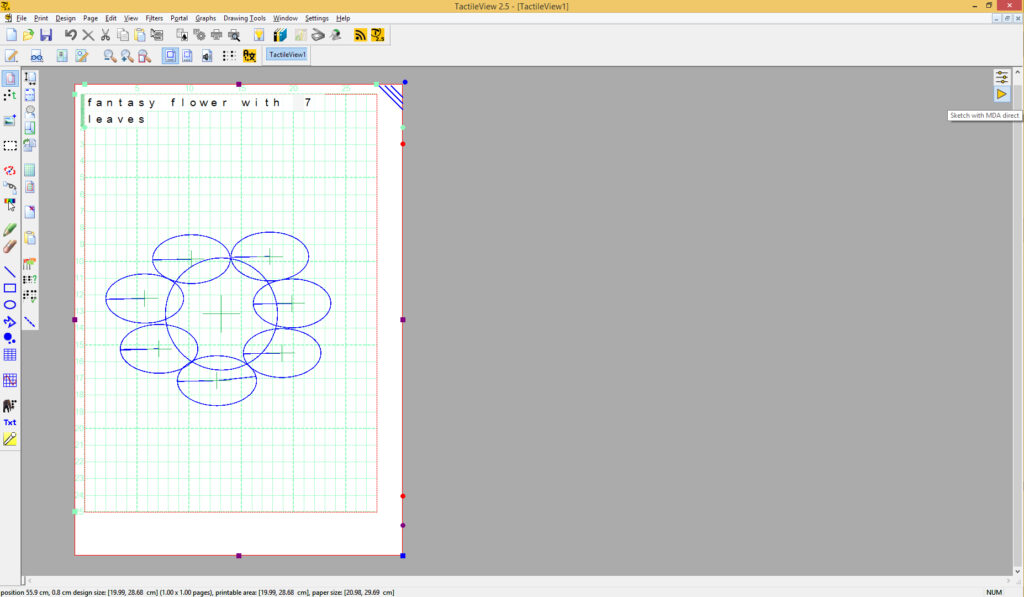
Advantages of TactileView
- Designed for tactile graphics.
- Easy creation of shapes, graphs and maps.
- Direct sketching to the MDA.
- No need to use the web interface.
Direct USB connection
The easiest method is to connect the MDA to a Windows computer using a USB cable.
No printer driver is required.
COM port setup (Windows)
- Open: Control Panel > Hardware and Sound > Device Manager
- Expand: Ports (COM & LPT)
- Connect the MDA by USB.
- Note the new COM port number.
Example: COM5
- In TactileView open: File > Print XY Plotter
- Open Settings and select the correct COM port.
Important
Do not use TactileView and the MDA website at the same time.
Sending multiple sketch commands may interrupt the sketch process.
08.4 – Choosing software
The MDA only accepts files saved as: SVG – Scalable Vector Graphics
SVG is a text-based vector format using lines and shapes. Many applications support SVG export.
Examples include:
- Windows
- Adobe Illustrator
- Inkscape
- GIMP
- Mac
- Adobe Illustrator
- Inkscape
- iPhone / iPad
- Vectornator
- FileBrowser
- Android
- Simplector
- Inker
08.5 – Creating an SVG file
Recommended page size
The MDA automatically scales drawings to A4.
To avoid unwanted resizing:
- Use an A4 canvas
- 210 × 297 mm, or
- 297 × 210 mm
Recommended margins
Leave at least: 5 mm on all sides.
File naming
Use short, clear and descriptive file names, such as:
- UK_Map.svg
- Bar_Chart_2026.svg
- Classroom_Layout.svg
08.6 – Tactile design guidance
For best tactile results:
- Use clear outlines.
- Keep layouts simple.
- Avoid unnecessary detail.
- Avoid overlapping lines.
- Use consistent spacing.
- Use polygons instead of curves where possible.
- Test the result by touch and improve if needed.
Do not rely on:
- Colour.
- Thin line differences.
- Decorative textures.
- Visual shading.
Current limitations:
- Braille text is not supported inside SVG files.
- Curves may be approximated using short straight segments.
- Very complex images may become difficult to read tactually.
08.7 – SVG compatibility
The MDA supports the following SVG elements:
- Line
- Polyline
- Polygon
- Circle
- Ellipse
- Rectangle
- Path
How these are interpreted:
- Outlines are drawn.
- Fill colours are ignored.
- Line thickness is ignored.
- Textures are ignored.
- Embedded JPG / PNG images cannot be sketched.
Warning messages
When a design contains unsupported elements, it may prompt you with a “Non-sketchable elements” warning. Only the supported elements of the design will be sketched.
08.8 – Start sketching
After transfer, the file will appear on one of these pages:
- USB drive
- Upload
- MyImages
Select the file to begin sketching.
Automatic sketching
If a file is copied to the folder ‘MDA-autosketch’, the MDA will start automatically.
No further action is required. After completion, the file is deleted automatically.
Best practice summary
For the most reliable workflow:
- Create a simple SVG file.
- Use clear tactile-friendly shapes.
- Transfer via Upload or network folder.
- Preview if needed.
- Start sketching.
 Previous section

 Table of content