
The MDA includes a number of sketch utilities, each with a dedicated purpose. However, they all operate in a broadly similar way.
Over time, additional images and utilities may be added.
Contents
07.1 – General
07.2 – Uploads
07.3 – USB Drive
07.4 – MyImages
07.5 – Interactive
07.6 – Examples
07.1 – General
At the top of the MDA’s built-in website, you will find navigation links to the sketch utility pages listed in the table of contents.
All pages have a similar layout with three sections:
Top Section
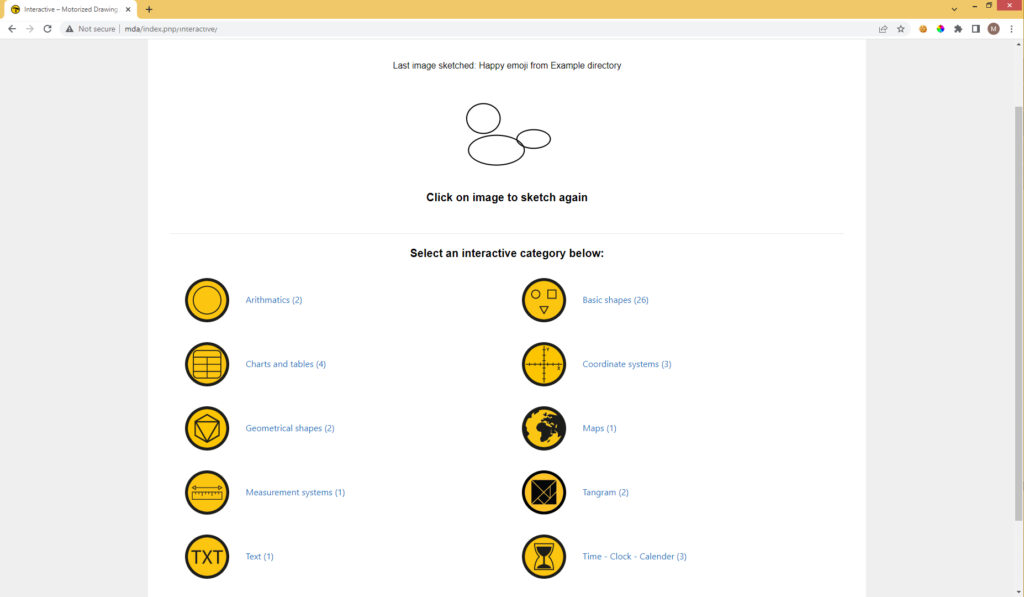
The system remembers and displays the image and title of the most recently sketched image, regardless of which sketch utility was used to create it.
Click the image to sketch it again.
This is especially useful when multiple TactiPads need to start with the same content. You can replace the current TactiPad with a fresh one and simply click the image again. It is also useful if something went wrong and the image needs to be repeated.
Middle Section
Images may come from several sources:
- stored in the local library.
- created with external software and uploaded.
- transferred via a USB drive.
- requested as a custom image and processed via the Thinkable server.
These images cannot be modified and are therefore referred to as static images.
Select a category and then an image.
In addition, there are dynamic (interactive) utilities based on predefined subjects.
These utilities require you to enter parameters such as size, minimum and maximum values of a range, or quantity, after which the image is generated.
By changing the parameters again, multiple variations of the same subject can be created.
Images and utilities are organised in lists and sublists, with the number of available items indicated.
Alternative text is provided for screen reader support.
After selecting a static image or dynamic utility, an image preview will appear.
Click the image or its alternative text. The MDA will either begin sketching immediately or wait for confirmation.
Note: If you try to start a new sketch while the MDA is already sketching, a warning message will appear. The MDA cannot start a new sketch until the current one has finished. Sketch jobs are not queued automatically. Once the current sketch is complete, you will need to select the image again.
Bottom Section
This section is reserved for menu buttons, file management options, or page-specific functions where applicable.
07.2 – Uploads
The Uploads page shows images that have already been uploaded to the MDA. You can also upload new images or delete previously uploaded images.
The lower part of the page contains an upload box. Click Select File to open a file browser and choose an SVG image to upload. At the bottom of the page, the Delete Images link opens a page showing all uploaded images. Click an image to delete it from the Uploads page.
07.3 – USB Drive
The USB Drive page shows SVG images stored on a USB stick or USB drive when it is inserted into the MDA.
07.4 – MyImages
The MyImages page shows images downloaded to the MDA based on image requests. An internet connection is required for this feature.
A user can enter a design request on the MyImages page. A member of the designer pool can accept the request and create a design based on the supplied description.
The system tracks all image requests, their status, and messages to the requester when a request has been completed. Once the designer uploads the completed image, it is stored on the system. When the requester opens the MyImages page, completed images are downloaded automatically.
MyImages Overview / Thinkable Website
The lower part of the page contains a link to the MyImages Overview page on the Thinkable website. Enter and confirm an email address. This may be the email address of the Owner/Administrator or that of any MDA user. You will then enter the MyImages Overview page on the Thinkable website.
- Click Start a New Design Request and enter a short and detailed description of the requested image.
- The Design Requests (New/Open) section shows requests that have been submitted but not yet accepted by a designer.
- The Design Requests (Accepted) section shows accepted requests together with the email address of the designer handling them.
- At the bottom of the page, a Delete Images link is shown. Clicking this link opens a page with all downloaded images. Click an image to delete it from the MyImages page.
07.5 – Interactive
The Interactive page contains categories with utilities for specific types of content. Interactive means that you only need to enter one or a few parameters to create variations of the same type of image. After entering the parameters, an image preview will appear. Before sketching, you can still adjust the parameters to create a different version.
For an overview, see the manual section 10 – Ideas and Suggestions for a drawing.
07.6 – Examples
The Examples page contains categories of pre-made images stored in the local library. After selecting a category, all images belonging to that category are displayed. There are 20 categories designed to inspire you. After sketching, the Return button brings you back to the category overview page.
For an overview, see the manual section 10 – Ideas and Suggestions for a drawing.
 Previous section

 Table of content